
Concepts
Versions and deployments
A version is an app's program as it was saved - it never changes, so any of them can be compared with and put back online exactly as it was.
A version is the program of an app as it was saved: its code, the files kept with it, and the resources it serves. Once saved, a version never changes. That is what makes every one of them worth keeping: you can compare any two, and put any of them back online exactly as it was.
What a version holds#
- The code: the C# files, compiled into the app, and every other file kept with it - its documentation in
docs/, its tests intests/, the sources of a front end. - The resources in
resources/: what the app serves and reads while it runs - its pages, scripts and styles, the migrations of its database. - Why it exists: one line saying what it changed, and what was asked for, in the words of whoever asked. The editor shows both beside the difference to the version before.
- Who wrote it, where the installation knows: the build agent running on it, on which model and at which effort - also when you put its draft online yourself. The editor marks such a version with a spark and says the model and the effort beside it in the full view, and when you point at it in the simple view. A version an agent of your own saved over MCP is marked as an agent’s, without a model: MCP does not say which one it runs on.
A version does not hold the app’s records, files or keys. Those are data, which every version shares.
How versions are made#
Every save is a new version, numbered 1, 2, 3 and so on, whichever way it comes:
| From | How |
|---|---|
| An agent over MCP | write_code or change_code without a draft |
| The REST API | POST /api/v1/lambdas/<editor key>/versions, or …/versions/changes, or a zip |
| Git | every commit pushed to main |
| The editor | Save in the Code, Documentation or Tests section |
| A draft | putting it online makes its files the next version |
Once an app is in use, agents save attempts in a draft rather than as versions, so that the history reads as one version per thing that was asked for.
Deploying and rolling back#
Deploying puts a version online; an app has at most one version online. A version that does not compile is not deployed, and whatever was online stays online.
Rolling back is deploying an older version: Roll back beside it under Versions, or Go back to this in the simple view’s history. The app’s data stays as it is - the older code runs against the data the newer one left. That is why agents change a database schema by adding to it rather than renaming or removing what an older version reads.
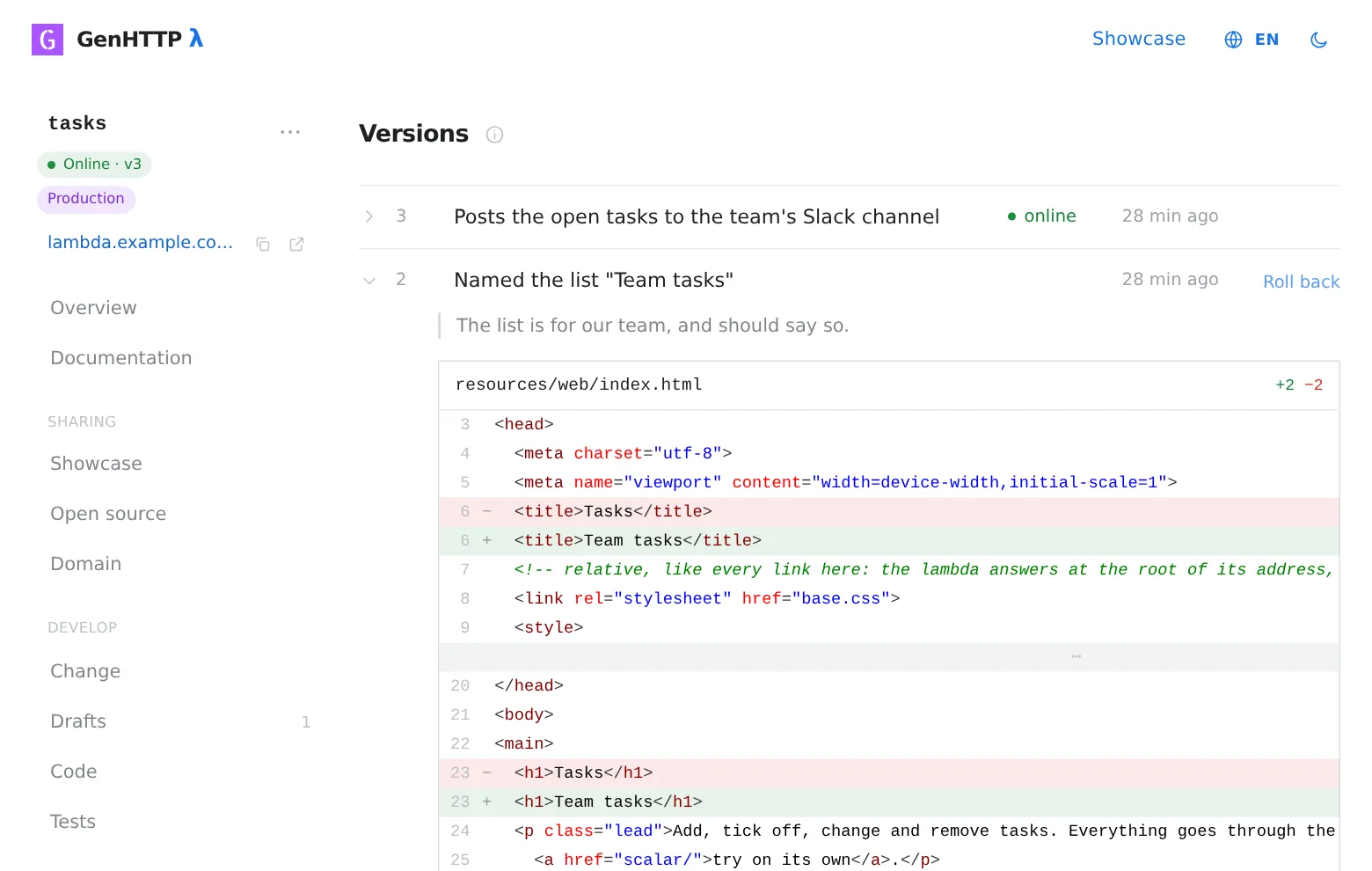
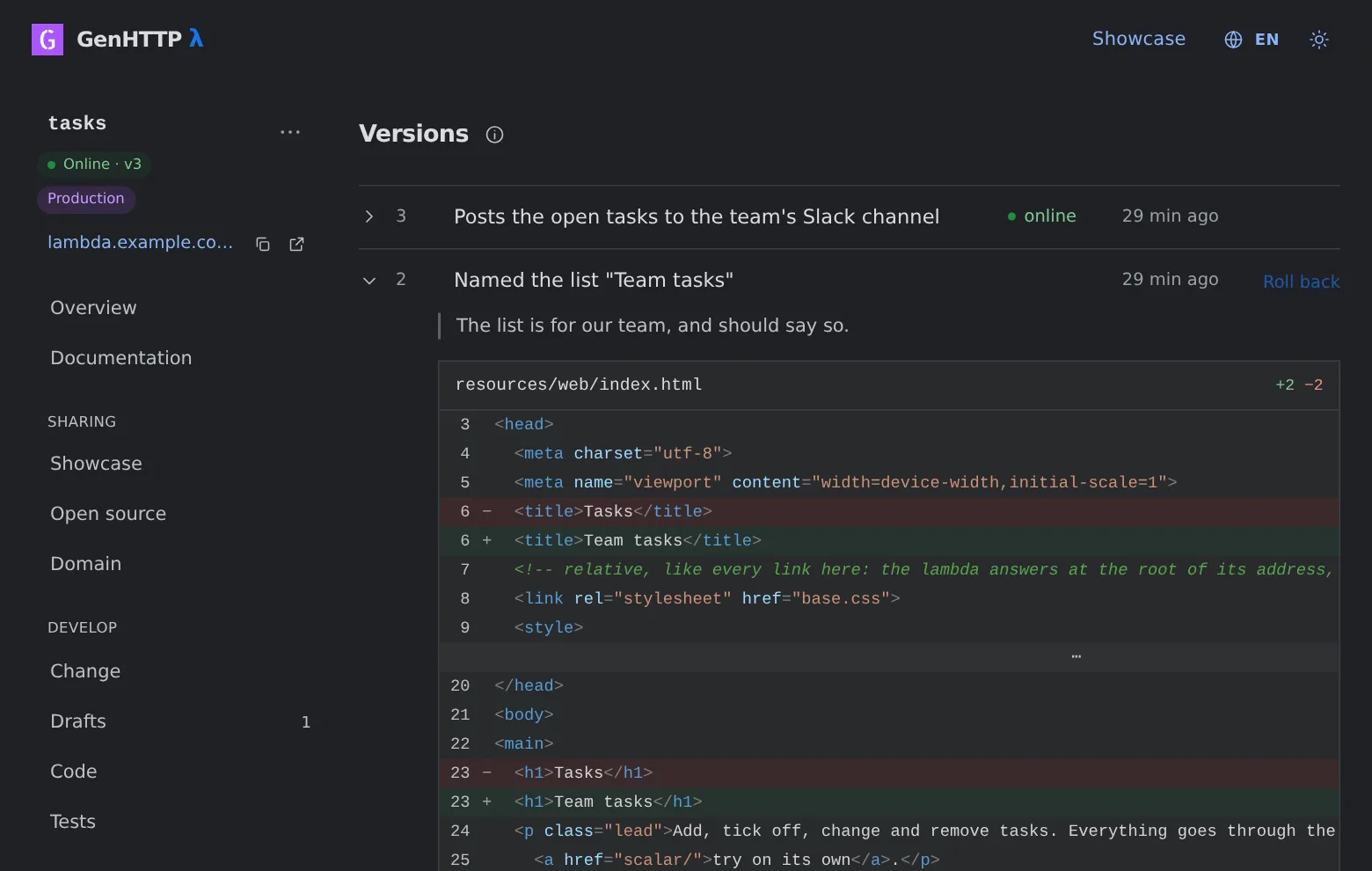 Versions: what each one changed and why, the one online marked, and a way back to every older one.
The Deployments section shows what was online over time, and what ended each stretch: a newer deployment, being taken offline, the sandbox’s timer running out, or the operator.
How many are kept#
The newest 50 versions of an app are kept, and the one online is never removed. The operator sets the number under Limits in the admin panel. Each version may come to 32 MB in the sandbox and 128 MB in production - its code and resources together. See Tiers and limits.
What versions hold in common is kept once: a picture that every version ships takes its room once, and a version takes on disk what it changed. A draft, too, holds its version’s files without a copy of them - only its copy of the data is one.
Documentation travels with the code#
Every version carries what is written about it:
| File | Holds |
|---|---|
docs/product.md |
what the app is, who it is for and what they do with it - its first paragraph opens the editor’s overview |
docs/decisions.md |
the technical decisions, and why they were made |
tests/README.md |
what has to keep working, and how each part is checked |
Agents read these before they change an app and update them in the same save, so the next agent starts where the last one ended. Rolling back brings back the documentation that was true of that version. The editor shows them under Documentation and Tests.