
The editor
The editor
The editor is where the owner of an app looks after it - its history, drafts, records, keys, visitors and code - in a simple view for people who do not write code and a full view with every section.
Every app has an editor at its editor link, /editor/<editor key>. It is made for reviewing and controlling what was built: what changed and why, what the app keeps, how it is doing, and a way back from every change. Building is the agent’s job; the editor is yours.
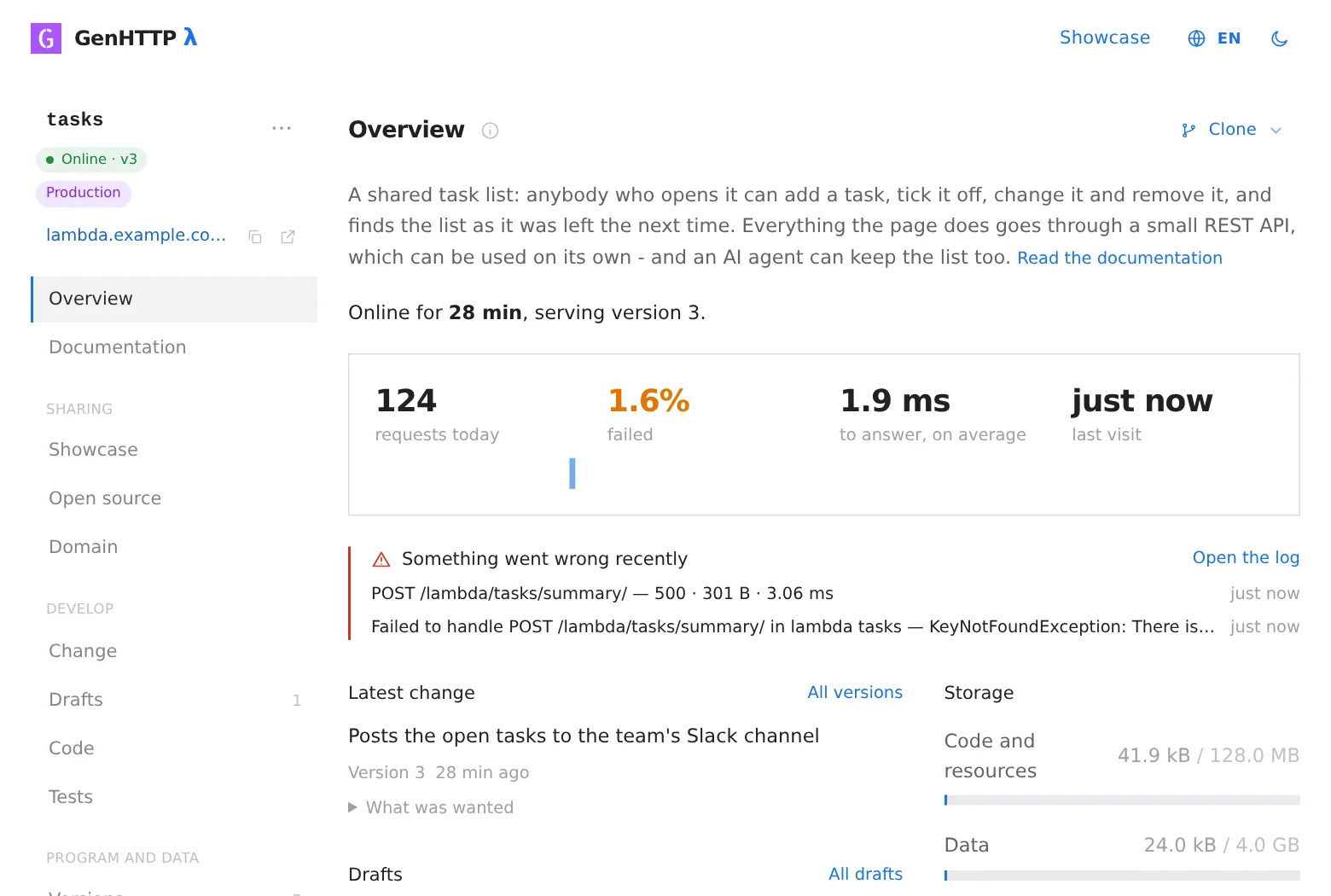
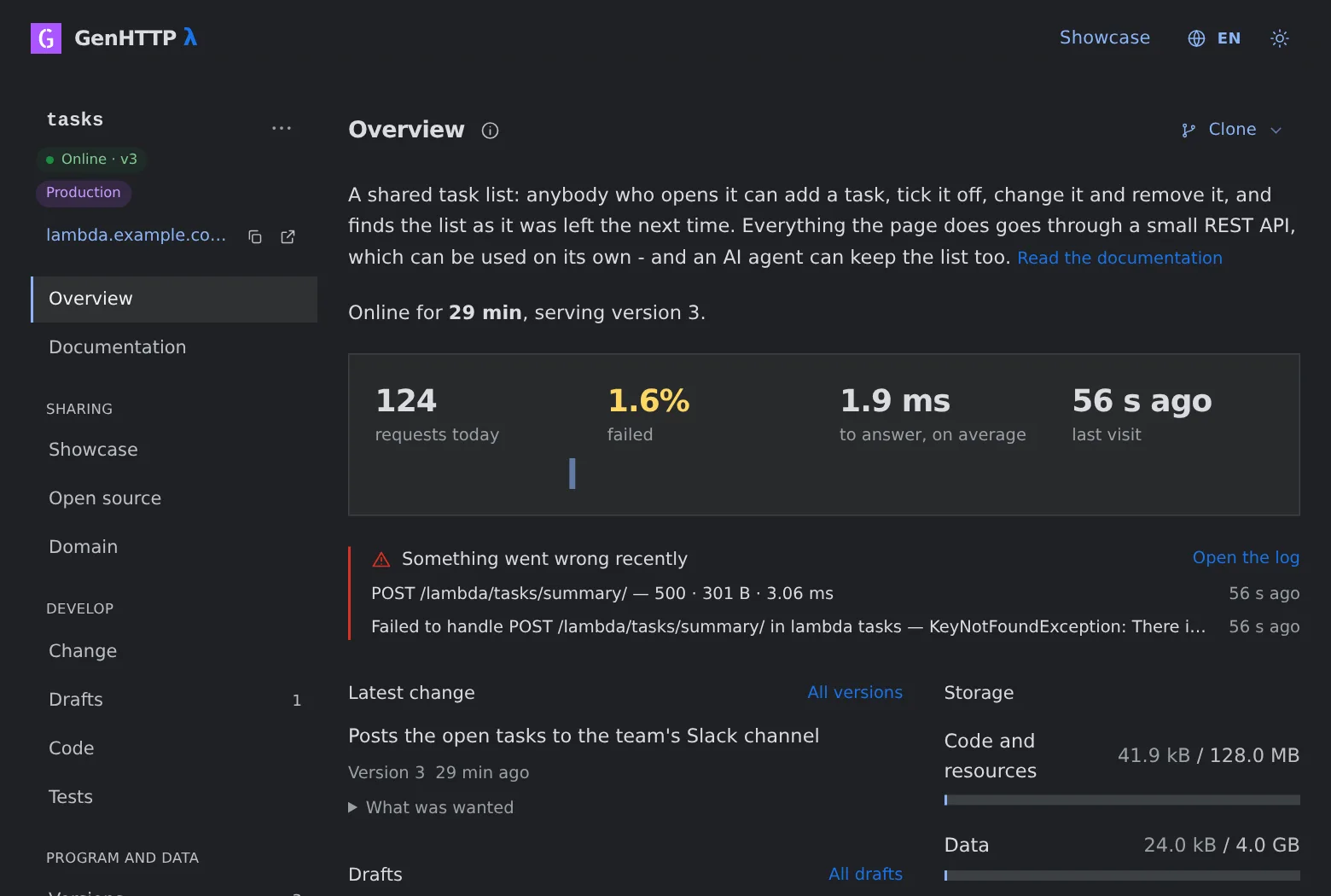 The overview: what the app is for, today’s figures, problems visitors ran into, the latest change, open drafts and how much of its room it uses.
Simple and full view#
| View | For | Shows |
|---|---|---|
| Simple | people who had an app built and do not read code | the app, how it is doing, its history, its data, and a box to ask for a change |
| Full | developers, and anybody who wants everything | every section, the code, tests, logs and deployments included |
Switch at the foot of the sidebar (on a phone, at the foot of the section list). The choice is kept in your browser, for this app. Apps built by the build agent open in the simple view; all others in the full view, unless an agent was asked to change that (update_lambda).
The sections of the full view#
| Group | Section | What it is for |
|---|---|---|
| Overview | how the app is doing, at a glance | |
| Documentation | what the app is for and the decisions behind it, per version; editable | |
| Sharing | Showcase, Open source, Domain | how others find it - see Domains, showcase and source |
| Develop | Change | ask the build agent for a change, where the installation has one |
| Drafts | changes being tried - see Drafts | |
| Code | every file of a version: read, edit, upload, check, save, deploy | |
| Tests | how the app is tested, and the scripts | |
| Program and data | Versions | every version with what it changed and why - see Versions |
| Database, Workspace, Secrets | what the app keeps - see Data | |
| Run | Deployments | what was online when |
| Connectivity | whether the code may connect to other servers - see Connectivity | |
| Stats, Analytics, Logs | requests, visitors and what the app printed - see Logs and analytics |
Some sections appear only where they apply: Drafts once there is one, Domain in a tier with domains of its own; demos and blocked apps have no Change, Showcase or Open source. A dot beside a section marks something that needs you: a problem in the log, a secret the code waits for, a change that ended.
The menu beside the app’s name (⋯) holds what concerns the app as a whole: copy its address or its private link, Change the address, Download as a .NET project, deploy or take it offline, and Delete this lambda.
The simple view#
The simple view has the Overview (“Your app”), About, Change, the drafts once there are any, the History, the kinds of data that hold something - Records, Saved by your app, Keys and passwords - and Showcase, Open source, Domain and Analytics. It names no file, log or deployment: a version is a change, rolling back is going back to it.
Common tasks#
Go back to an earlier version#
Versions, then Roll back beside the version (simple view: History, Go back to this). The app’s data stays as it is, and the newer versions stay in the list, to go forward again.
Try a change, then put it online#
Open the draft under Drafts, then Try it to open its preview. If it works, Put online: the draft becomes the next version and goes online. If the draft is out of date, the editor offers to have the agent bring it up to date.
Enter an API key the app needs#
A dot beside Secrets says when the code waits for a key; in the simple view, the overview asks for it. Open Secrets and choose Set it beside the name (simple view: Keys and passwords, Enter it), and paste the value. It applies from the app’s next request, and nobody can read it back - not you, not an agent.
Look at the records#
Database lists the tables and their rows, newest first. They are read only here: the app writes them.
Change the code yourself#
Code shows every file of a version. Edit, Check to compile without saving, then Save - a new version - or save it as a draft to try first. Deploy puts a version online. Or Clone it with git and work in your own editor: see Working with git.
If the app is blocked#
A banner, Blocked by the operator of this site., with the reason they gave, means the operator took the app offline for breaking the installation’s rules. It cannot be changed or put online any more; everything it has can still be read and downloaded. Write to the operator if you think it is a mistake - see Blocking.
Hand the app to somebody#
Give them the editor link (⋯, Copy the private link). Whoever has it has every right on the app, and a link cannot be taken back - share it only with people who should have it.