Getting started
Quick start
From an empty server to an app online in five minutes - start the container, connect your coding agent, ask for an app, and change it safely.
You need Docker and a coding agent that supports MCP, such as Claude Code, Cursor or VS Code with Copilot.
1. Start the server#
Shell
docker run -d --name lambda -p 8080:8080 \
  -v lambda-data:/data \
  -e LAMBDA_ADMIN_TOKEN=a-long-password \
  genhttp/lambda
Open http://localhost:8080. Everything the installation keeps is in the volume lambda-data. The admin token unlocks the panel at /admin; without it there is no panel.
This is enough to try the platform on your own machine. For a server that others reach, set its public address and put HTTPS in front of it - see Install.
2. Connect your agent#
For Claude Code, run this once:
Shell
claude mcp add --transport http genhttp http://localhost:8080/mcp
Any other agent adds a remote MCP server at http://localhost:8080/mcp. The installation’s Publish page (/ship) shows the address and the setup for the common agents, and Connect an agent has all of them.
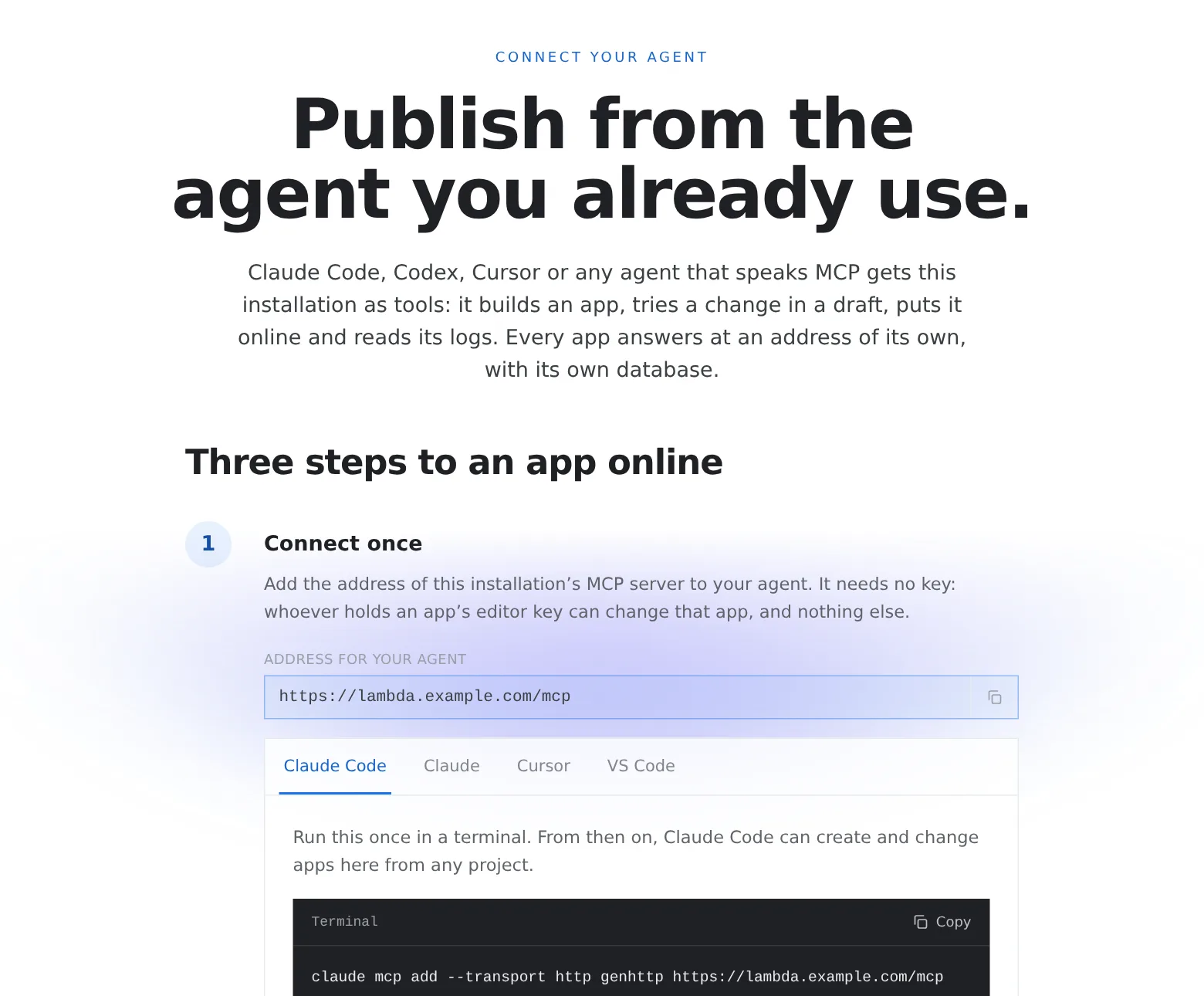
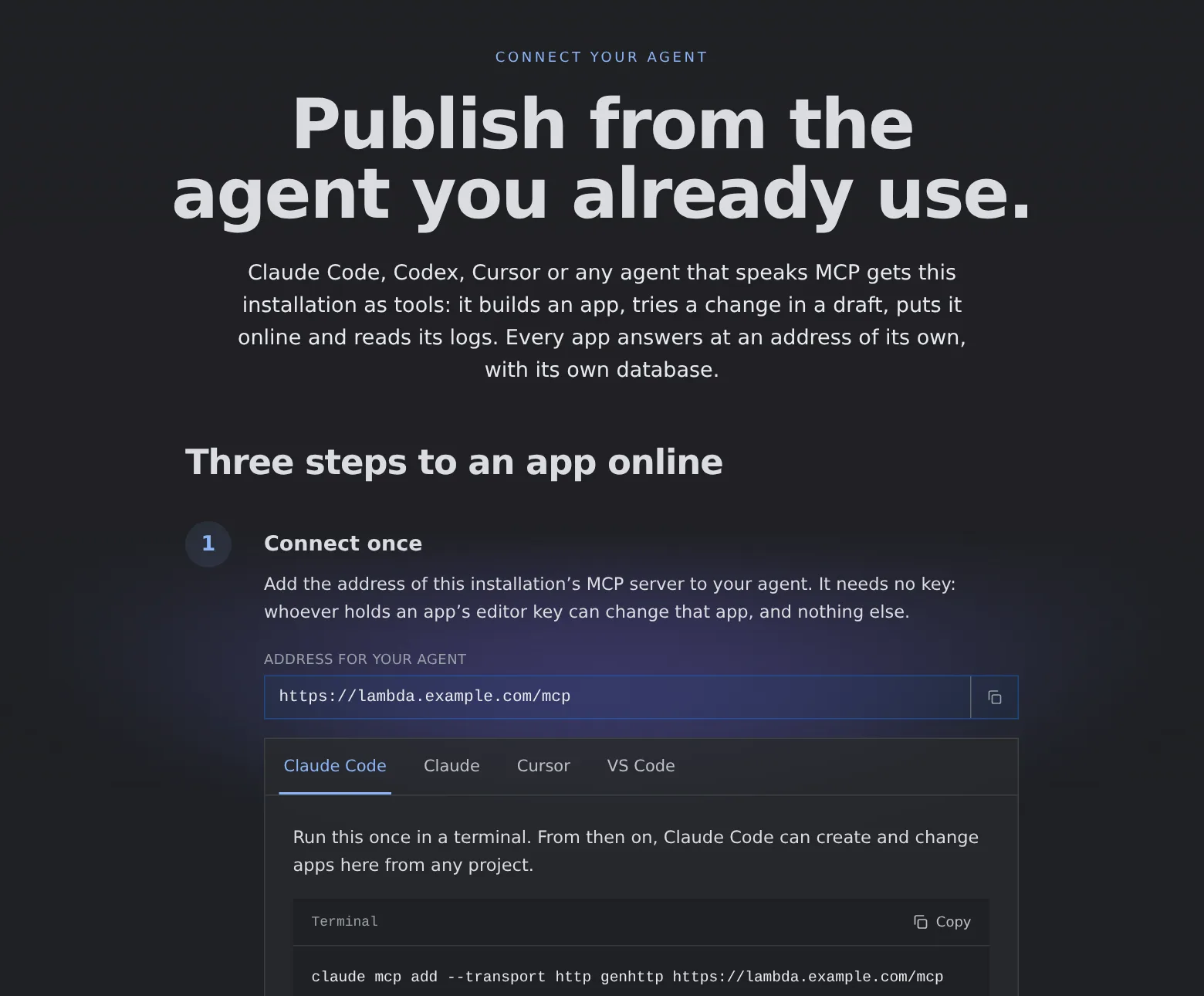 The Publish page (/ship) of every installation shows its MCP address and how each agent connects.
3. Ask for an app#
Describe what you need, in your own words:
Build a shared task list for the team, with a page where everyone can add and tick off tasks.
The agent reads the platform’s guide, writes the app, checks that it compiles and puts it online. It answers with two links:
- the app’s address, such as
http://localhost:8080/lambda/tasks/- for everybody; - the editor link,
http://localhost:8080/editor/<editor key>- for you.
4. Change it without breaking it#
Ask for the next change, with the editor link:
Here is the editor link of the task list: … Give every task the day it is due.
Once an app exists, the agent works in a draft: a copy of the app and its data with an address of its own. Visitors keep getting the app as it was. When the change works, the agent puts the draft online - or leaves it for you to try first, if you ask it to.
Open the editor link to see what happened: every version with what was asked and what changed, the records the app keeps, its logs and visitors.
Next steps#
- Concepts: what versions, drafts and data are, and why they behave as they do.
- The editor: rolling back, entering an API key, reading records.
- Install: a public address, HTTPS, backups.